It started with Microsoft native Approvals doing something almost right.
I was building approval workflows in Power Automate. The native Approvals connector is fine. It does the job. Pick your approvers, set a due date, done. But I had a specific requirement: an “Ask Question” button. Not Approve, not Reject. A third option that lets the approver pause, fire a question back at the requester, and keep the approval open while they wait for an answer.
Think about it. You’re approving a quote. You want to check whether it accounts for a specific cost, or whether the scope covers scenario A or B. Small thing. Needs a quick answer before you can commit. Totally reasonable.
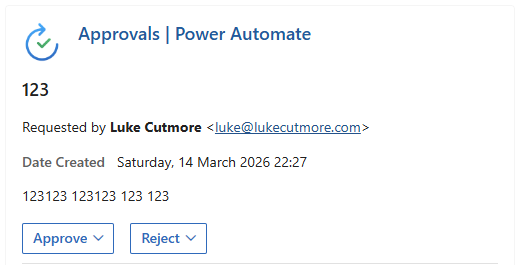
The first version was actually straightforward. Custom buttons, included ‘Ask Question’ option and a comment box, looked the part. Felt quite pleased with myself.
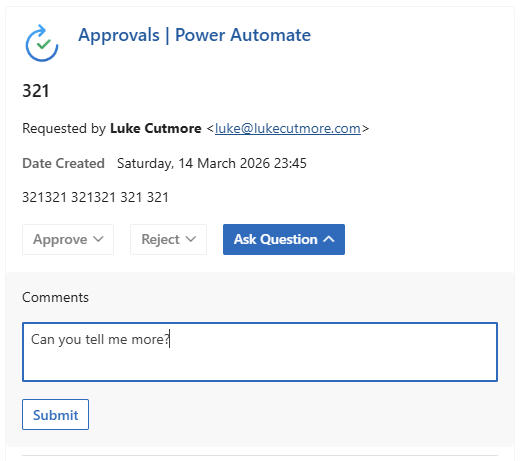
But when you hit submit, that’s it, the process is over, now you’ve broken the chain. May as well have hit reject and asked your burning question in the comment box Anyone else in the sequence who has already approved? They’re doing it again. The whole thing restarts. There’s no “pause and clarify.” It’s a one-way door, and it only swings one way.
With native Approvals, you could step out of the approval, go and find the requester via Teams or another email, remind them of the context, and ask the question there. It is too detached from the process and strips away much of the usefulness you were trying to add in the first place.
And while I was already annoyed, I had a proper look at everything else I couldn’t do. The approval always fires from Power Automate, never from the actual solution or app the request came from, yes! you can add the requester, but its still plastered with “Approvals | Power Automate”. No real control over formatting. No logo, no branding, no images. Just the default Microsoft Approvals branding and whatever text you managed to squeeze into the details field, using half the available markdown syntax elements it should have.
So I vented at my AI of the month. It informed me, quite casually, that you can build custom Adaptive Cards for approval emails.
That sounds simple enough – Famous last words.
Right. Custom Adaptive Cards. How Hard Can It Be.
Adaptive Cards are Microsoft’s format for interactive email content. They render inside Outlook, they can have buttons, plain text inputs, all the controls. You can sign them to make them actionable, meaning someone can hit Approve directly from their inbox without leaving the email client.
I added the Ask Question option, which surfaces a text field for the question and, crucially, does not interrupt the approval process! Now I just need to implement a notification to the requester that you have a question. But having got this far so quickly, I decided to add options to delegate and open the record, figuring I could wire up the logic later.
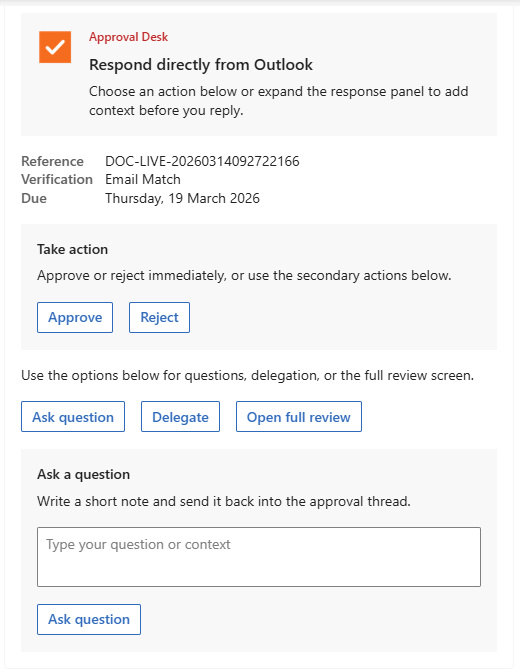
Then I asked myself “What if the approver isn’t in our organisation?”
External Approvers and the Token Rabbit Hole
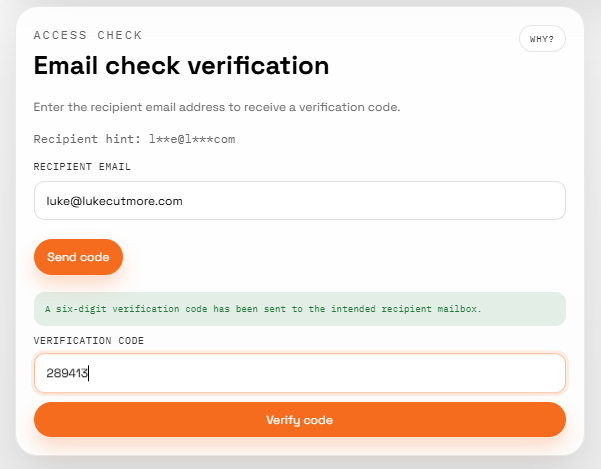
Outlook Actionable Emails only work for internal users. External approvers can’t receive or interact with signed cards. So for them, you send a link to a web portal instead.
At this point I also briefly considered Power Pages as the external portal. Looked at it seriously for about a day. Then looked at the licensing costs and quietly closed the tab. Except now I need a web page.
Azure Static Web Apps it is. And that page needs to know who the approver is, which request they’re responding to, and whether they’re actually allowed to approve it. You can’t just pass an approval ID in the URL and hope for the best. Anyone could guess IDs, forge requests, approve things they have no business approving.
AI of the Day, give me an email template – Bosh
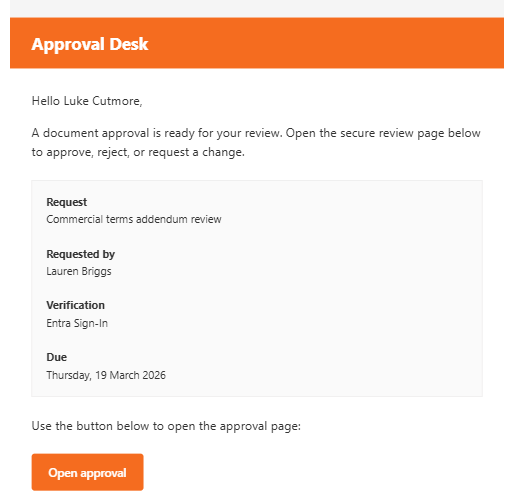
So now I need tokens. Signed, HMAC-encrypted, expiring tokens embedded in the URL. An Azure Function to validate them. A ApprovalLinkProtector class to generate and verify them. Three verification modes depending on trust level: open link, match email, or full Entra sign-in.
The Data Model
Since I had already blown the original scope to pieces, I wanted to make sure it had real-world usability and could be reused anywhere I work, which, if you had not already guessed, means the Power Platform. Thus everything lives in Dataverse.
Custom tables; Approval Instance, Approval Step, Approval Recipient, Approval Message. The data model went through a few iterations before the AI beat me into submission, settling on something sensible, a mere 16 entities. 😬
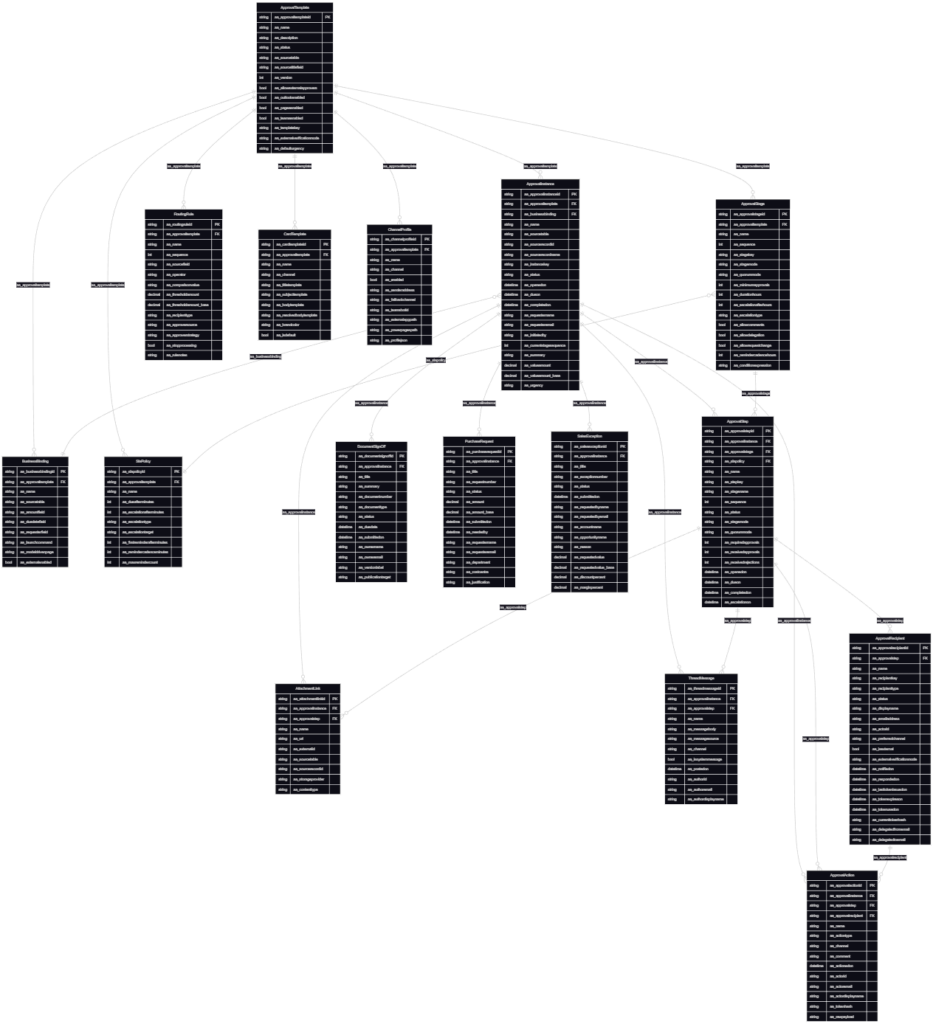
“Can we have multi-tier approvals? First the line manager, then the department head?”
Of course we can. We’ve already got 16 tables, what’s a bit of sequencing between friends.
The core of it: each instance runs through one or more steps in order, each step has its own set of recipients, and the step doesn’t close until the required number of those recipients have responded. Hit the threshold, activate the next step, repeat until you’re done. Line manager approves, department head gets notified, CFO gets dragged in if it’s over a certain amount. However deep you want to go.
The UI Took Many Attempts
Getting the approval action section right took longer than I’d like to admit (tbh, its still not there yet). The layout needed to work for both internal (Outlook card), internal/external email body and external (web portal) approvers, look professional, handle variable numbers of buttons, and not fall apart on mobile.
Version one was functional but rough. Two looked better but the button layout went weird with more than two options. Three fixed that but broke mobile. Four, or perhaps version twenty-four, is what I eventually settled on.
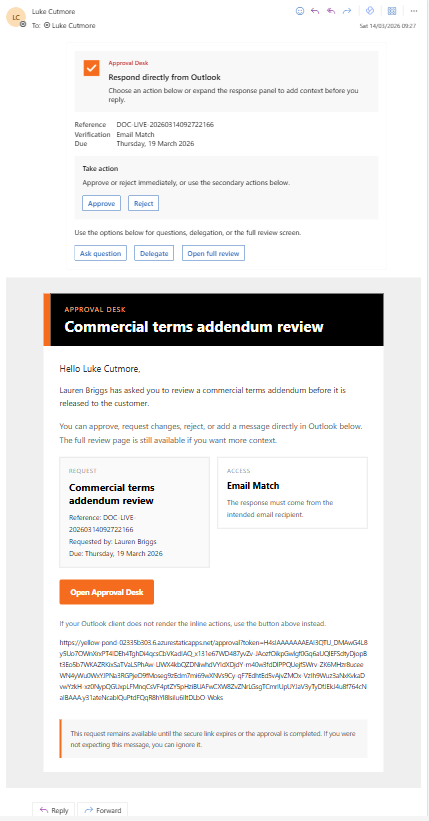
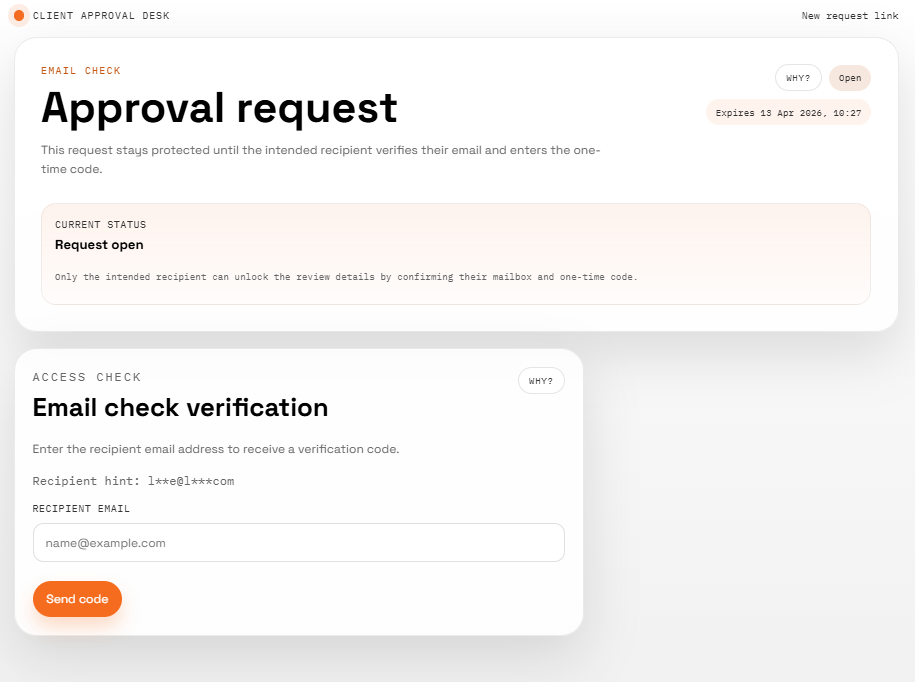
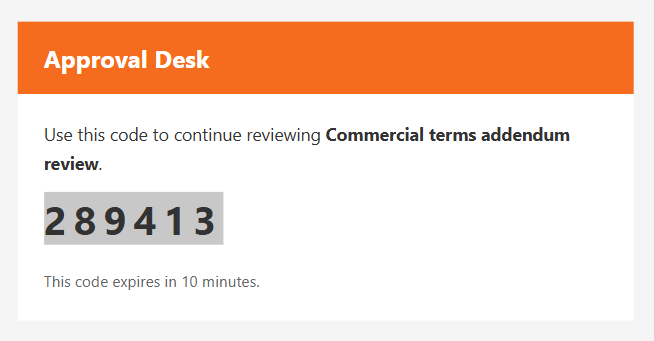
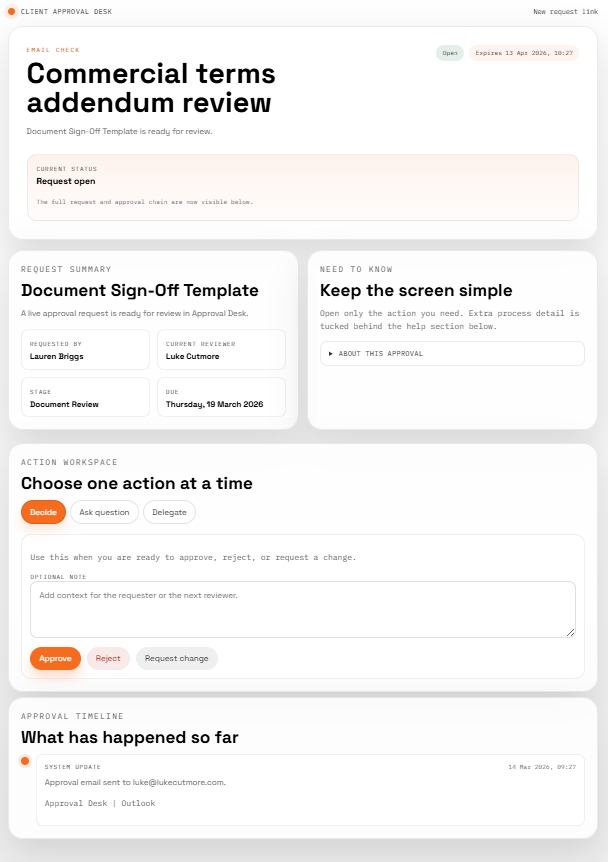
The mobile layout (not shown) was its own ordeal. Delegate boxes collapsing wrong, buttons stacking oddly, the comment text area going full-width in places it shouldn’t. Nothing catastrophic, just the kind of thing that takes an hour of fiddling to get right and then looks obvious in hindsight.
Keeping the Requester in the Loop
One thing the native Approvals experience does reasonably well is keeping the requester informed. You get a notification when it’s approved or rejected. We needed the same, plus more, notifications when each tier approves, not just the final outcome, and the ability for the requester to see the full chain and who’s done what.
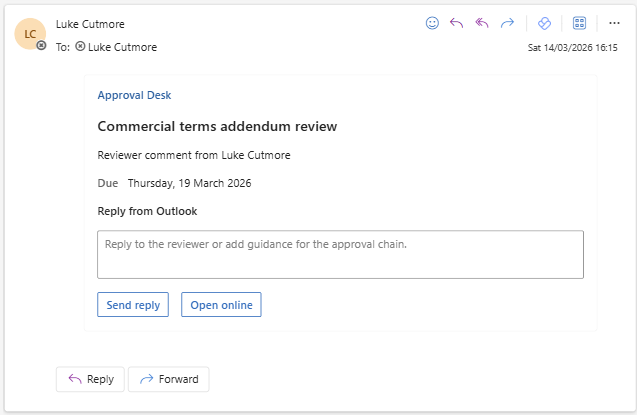
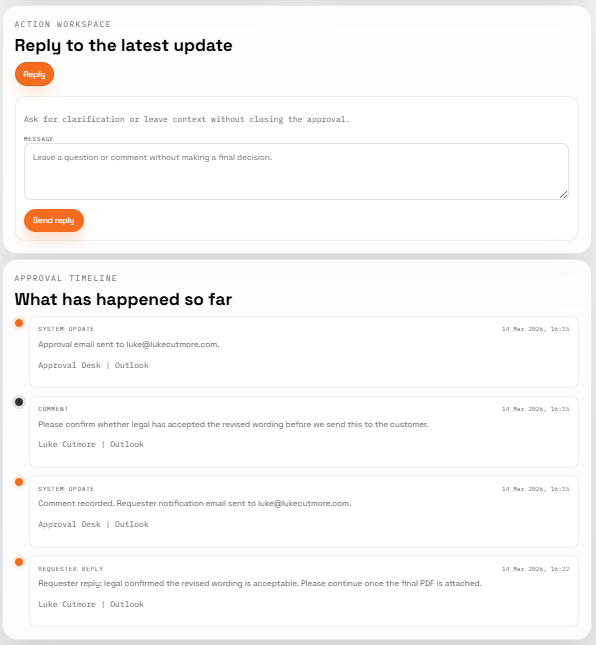
The requester follow-up flow uses its own token type, RequesterFollowUp, so they can view the approval status without being able to interact with the approval itself. Same security model, different permission level. They get a link in their notification email that takes them to a read-only view of the chain.
Then Someone Mentioned Attachments
“What about attachments? The approval is for a quote, the approver should be able to see the document.”
Of course. Because nothing says “approve this” like sending someone a request with no context and hoping they remember what the thing was.
The attachment approach ended up being Azure Blob Storage. Not SharePoint, not email attachments. Blob storage, with per-approval-instance paths, GDPR-aware configurable retention, and a download endpoint that validates against the same token security model. The approver’s token gives them access to the attachments for that specific approval. Nothing else.
The attachment payload aligns with the structure used by Power Automate approval attachments, so it can plug into existing flows without additional mapping. Files are stored in Blob Storage with configurable retention, and the first time an approver downloads an attachment that event is recorded as their document acknowledgement. This provides a clean audit trail.
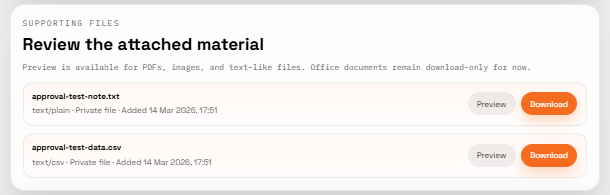
For document preview in the portal: PDF.js for PDFs (open source, client-side, no cost), and the Microsoft Office Online viewer for Word, Excel, and PowerPoint (probably), is all on the To-do list.
The Azure Functions Layer
The backend is a single Azure Functions app, .NET 8, isolated worker, consumption plan. Kept it as one app to keep costs down. The endpoints handle approval actions (approve, reject, ask question), token validation, the requester follow-up view, attachment upload, and attachment download.
The Power Automate flows call into it via HTTP triggers. Seven flows in total, each one a clean handoff, the flow handles the orchestration, the Function App handles the security and data access.
The whole thing is being packaged (eventually) as a Power Automate custom connector so it can be dropped into any solution without rebuilding the plumbing from scratch. The goal is: import the connector, configure your environment variables, and you’ve got a fully featured approval system in the time it used to take to wire up the native one.
Dynamics App? Of course!
If you are building on Dataverse and not wrapping a model-driven app around it, you are leaving one of the best parts of the Power Platform on the table. The Dynamics app gives you the operations view — every approval instance, every step, the full recipient chain, thread messages, actions taken, attachments, all of it in one place. Custom pages for the bits that needed a bit more control, standard tables for the straightforward stuff. Not the thing end users interact with, but absolutely the thing you open when someone says “it’s stuck” or “why hasn’t it moved.” Ops, admin, and debugging all in one tidy model-driven package.
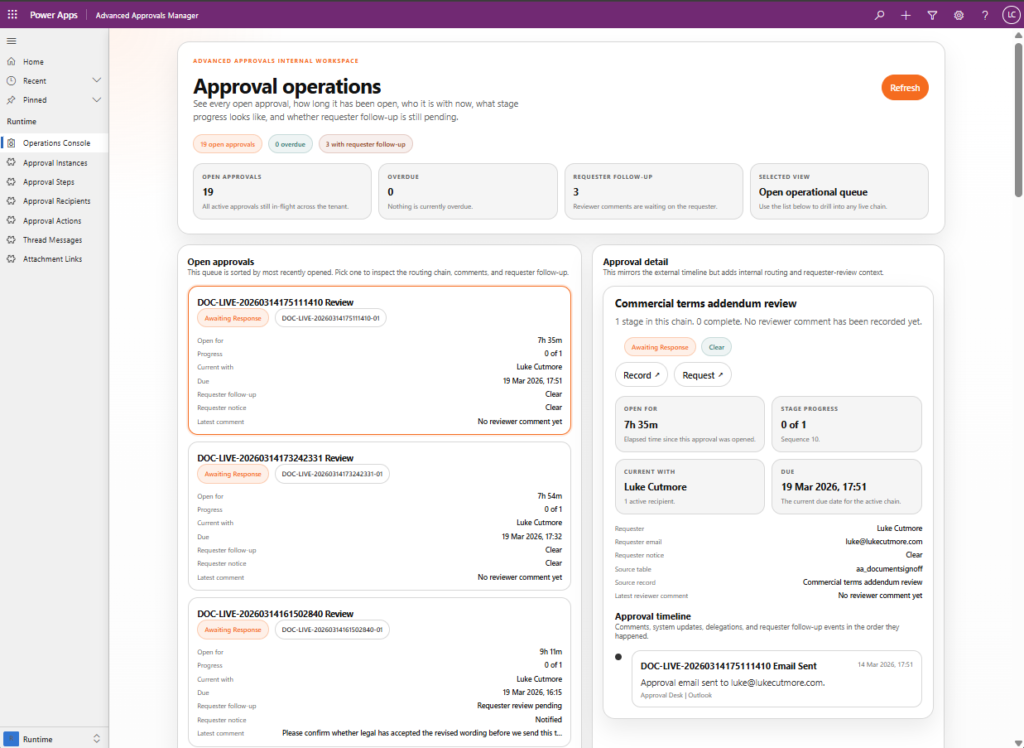
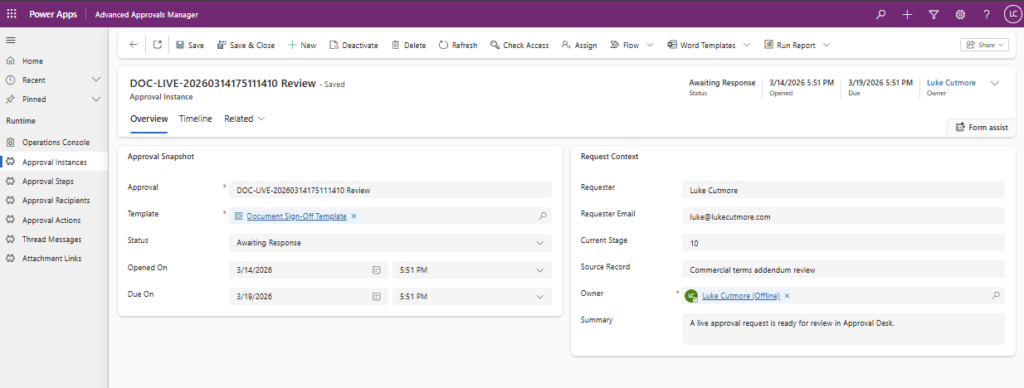
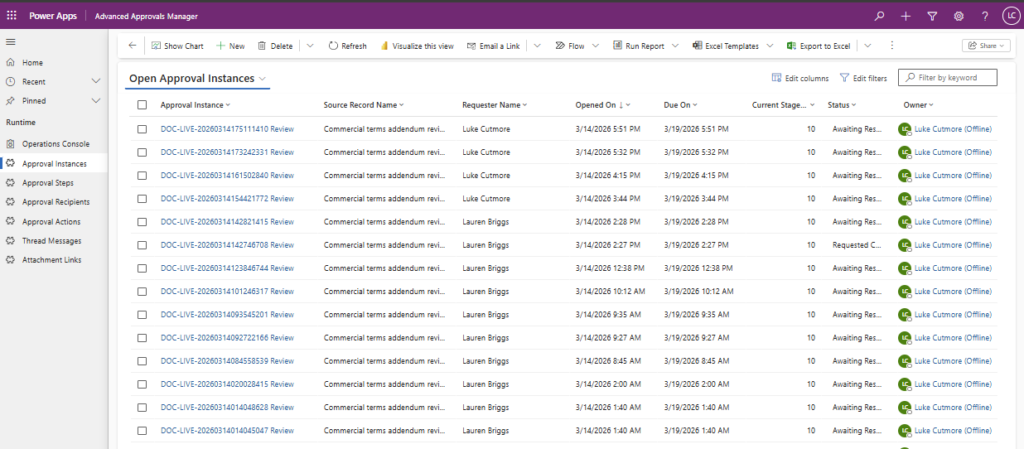
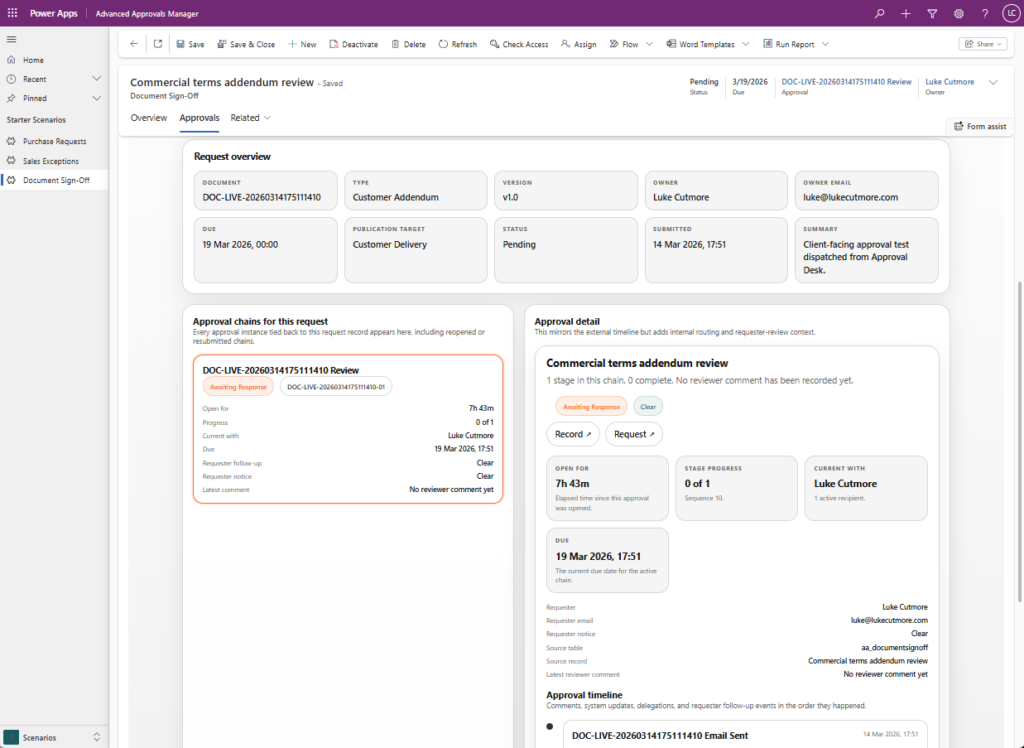
While going back in to grab the screenshots for this post, I realised I should have enabled the modern theme. It is much nicer. You’ll see in the next update!
What It Actually Is Now
After all of that, here is where it landed:
- Multi-tier sequential approvals with configurable steps
- Custom response options per approval type, with comment box always intact
- Ask Question flow, approval stays open, requester gets notified, can respond and reactivate
- Internal approvers via signed Outlook Adaptive Cards
- External approvers via token-secured web portal
- Three verification modes: open link, email match, Entra sign-in
- Requester notifications at each stage with a read-only chain view
- Blob-based document attachments with GDPR retention
- Full audit trail in Dataverse
- Custom connector for Power Automate (WIP)
All because I wanted to ask a question without blowing up the chain.
What’s Still Coming
The roadmap still has some good ones. Out-of-office delegation, detect when an approver is away and surface options to the requester rather than auto-deciding for them. SLA escalation policies, configurable timers that trigger reminders or escalate to the next approver if nothing happens. Rejection and resubmit loop, requester gets notified on rejection, can update the request and push it back through. Recall, requester can pull back an in-flight approval if circumstances change.
Each one is a proper feature with real design decisions behind it (so I keep telling myself). I might write about them as they get built… although judging by how often I’ve posted here since setting this site up, that might be an optimistic promise.
If you’re building on Power Platform and you’ve hit the same walls with native Approvals, you might want to think twice before doing this. That said, I may publish the repo once it’s out of proof of concept. 🤷